

Product Variants
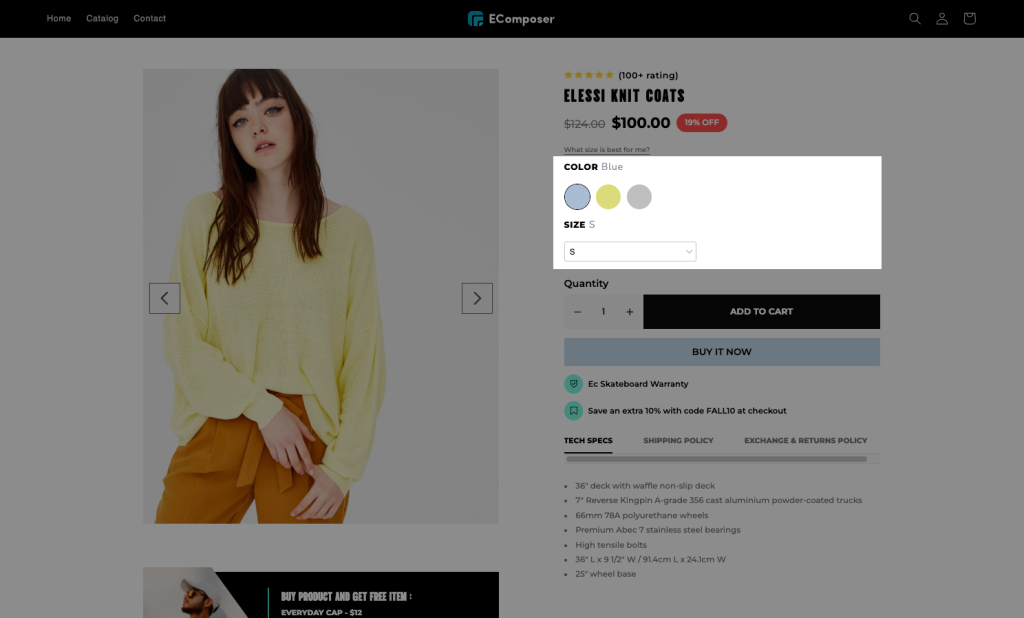
Variants can let you offer different versions of a product, such as sizes and colors, so customers can find exactly what they want. A list of variants available for a product is a must-have feature displayed on its product details page. This element displays the product variant options pulled from Shopify. It does not work with variants from third-party apps.
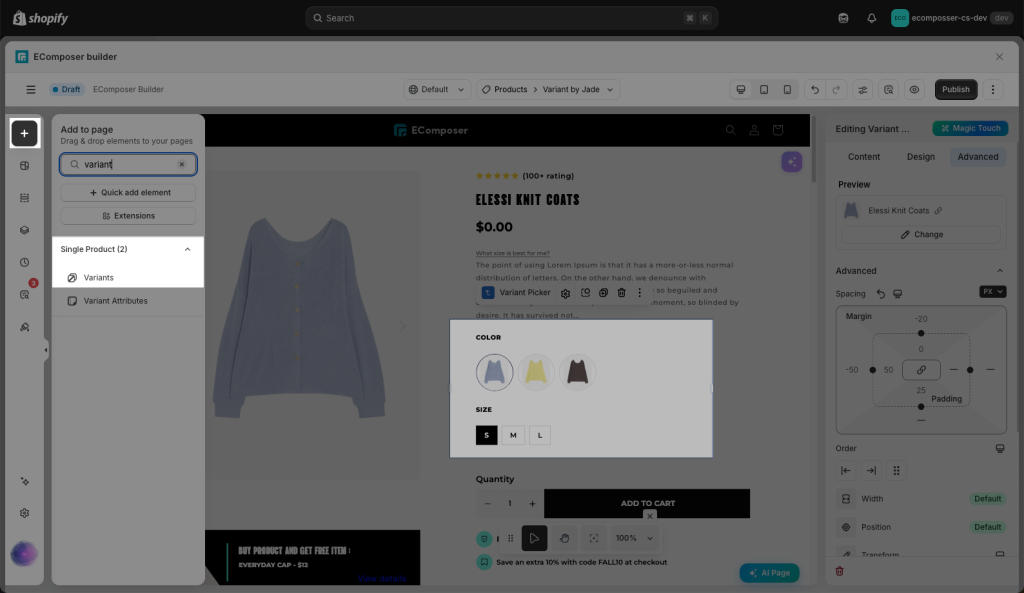
To use this element, you can drag and drop the Variants element under the Single Product tab from the left sidebar to any position you would like.
1. Content
The Content tab allows you to configure how product variant options are displayed on the product page. You can choose different picker layouts such as Dropdown, Image picker, Color picker, Radio button, or Shopify Color, depending on your product setup and design needs. This tab also includes settings to control unavailable or sold-out variants, show or hide selected option names, update the URL based on the selected variant, and adjust the spacing between variant options.
1.1 How to change the type/layout for variant options
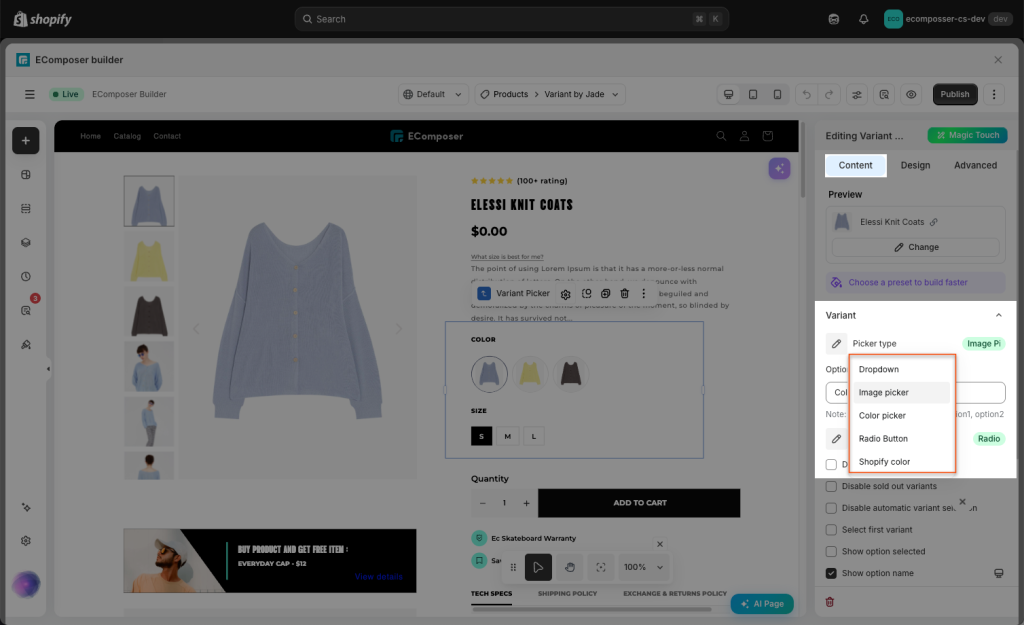
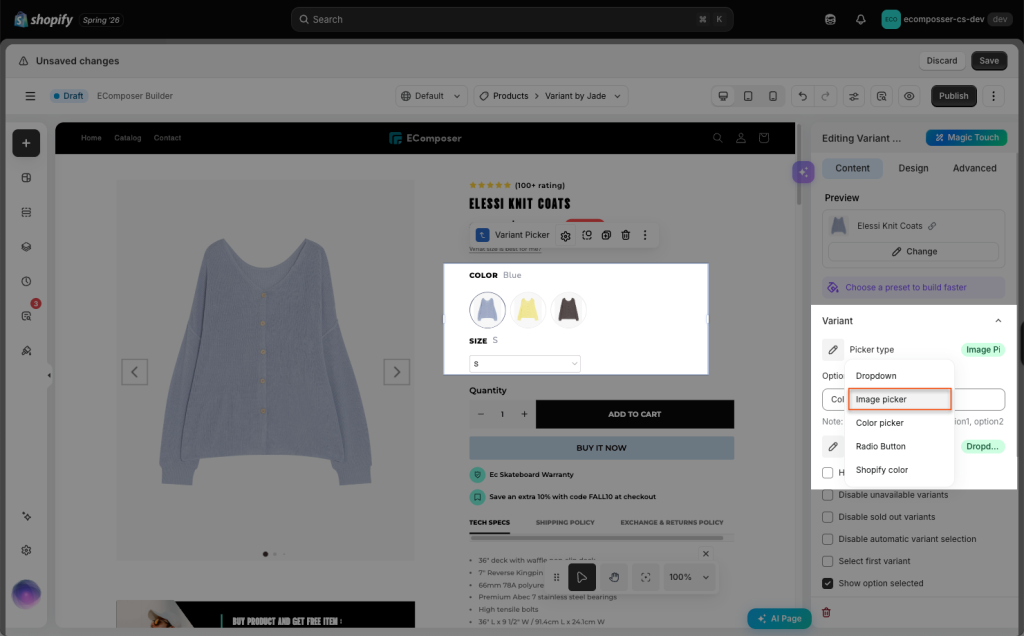
Pick a type of layout that you wanna use for the Variant here. We have a total of 5 types for you to choose from: Dropdown, Image picker, Color picker, Radio button, and Shopify Color.
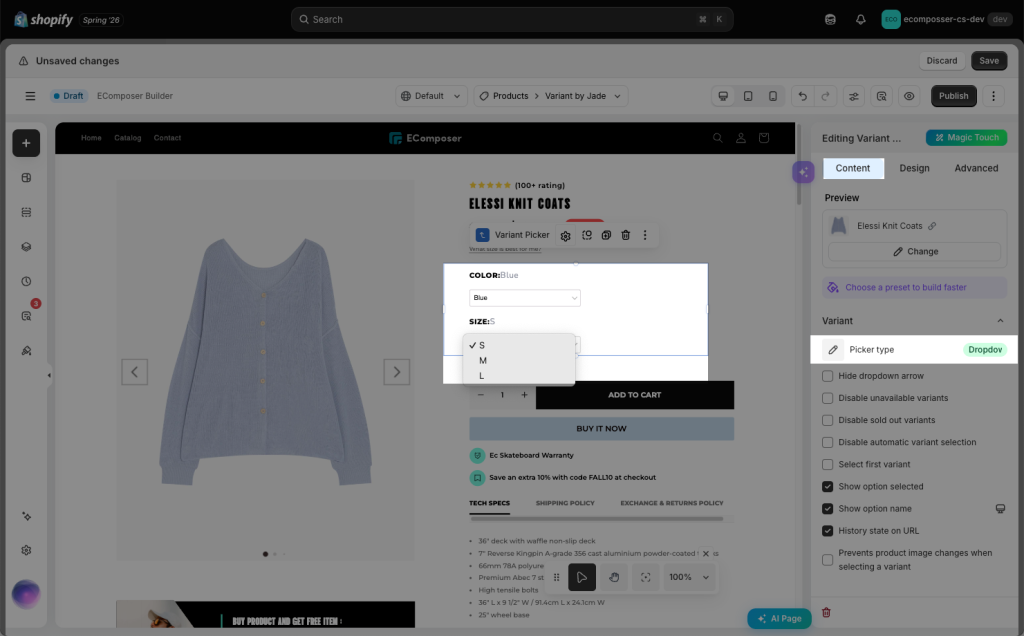
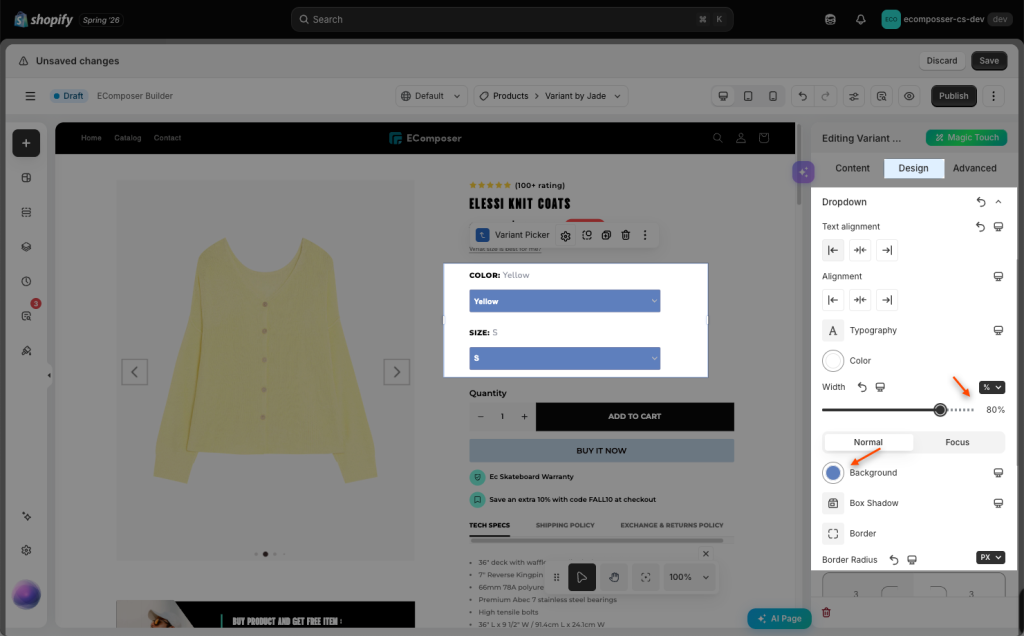
- Dropdown: clicking the dropdown displays a list downward. For more than 5 options or to save space, standard dropdown menus are often preferred. You can change the design of this dropdown, such as font, color, width,.. in Design tab -> Dropdown.
Note: If you don’t want the arrow when utilizing the dropdown style, you can select Hide dropdown arrow option.
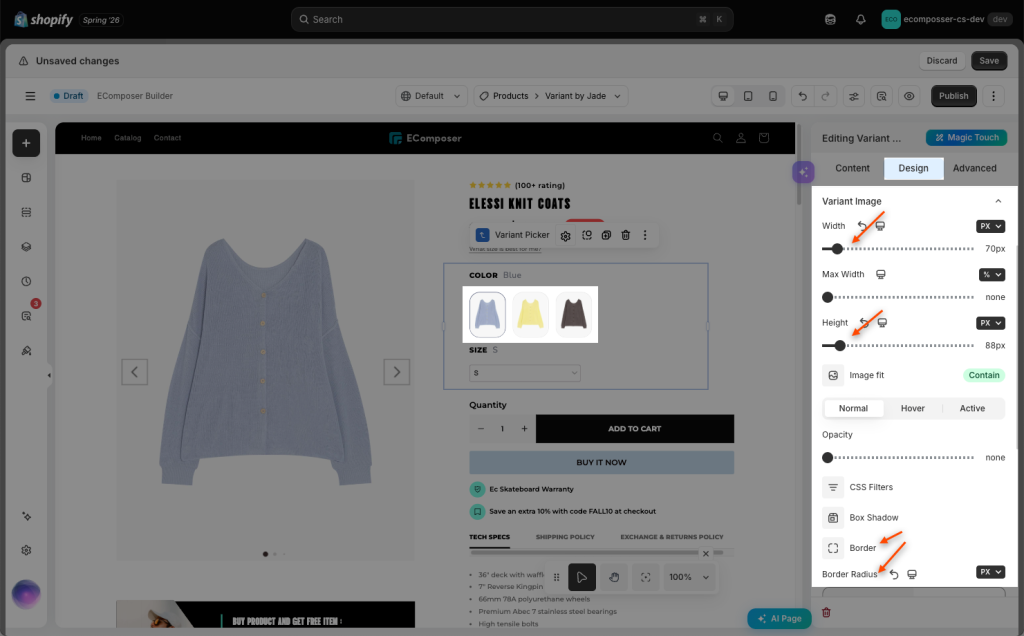
- Image picker: variant images are photos specifically assigned to a product’s available options, such as color, size, or material. When a customer selects a specific variant (e.g., a Red t-shirt instead of a Blue one), the image automatically updates to reflect that selection. This makes the product pages feel more professional and easier to shop.
+ To adjust image picker’s design, you can change the width and height of the image, image fit, opacity, borders…
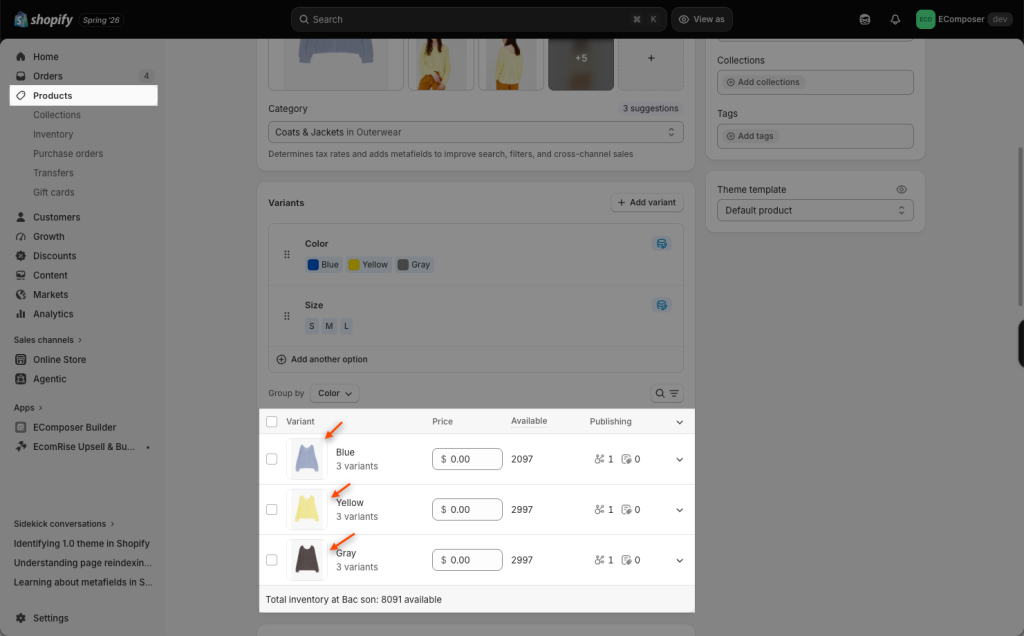
+ Variant images work by assigning a specific image to each product variant in the Shopify Admin. if a product has Blue and Yellow variants, you can assign a Blue product image to the Blue variant and a Yellow product image to the Yellow variant. When the customer selects Blue, the blue image will be displayed; when they select Yellow, the yellow image will be displayed.
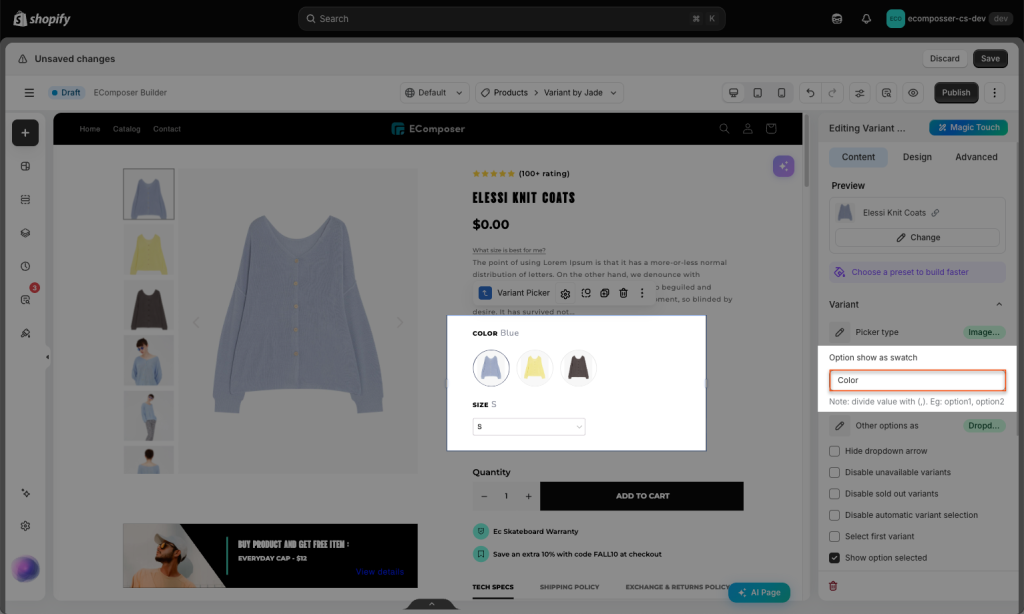
+ Option show as swatch: Insert the option name that you wanna show as a swatch here. Example: Color. If you have different variants for your products, you can fill in this option with more than one name. For example, “Color, Material”
Please keep in mind that this is the Option name that you set up for your Products in the Shopify backend. 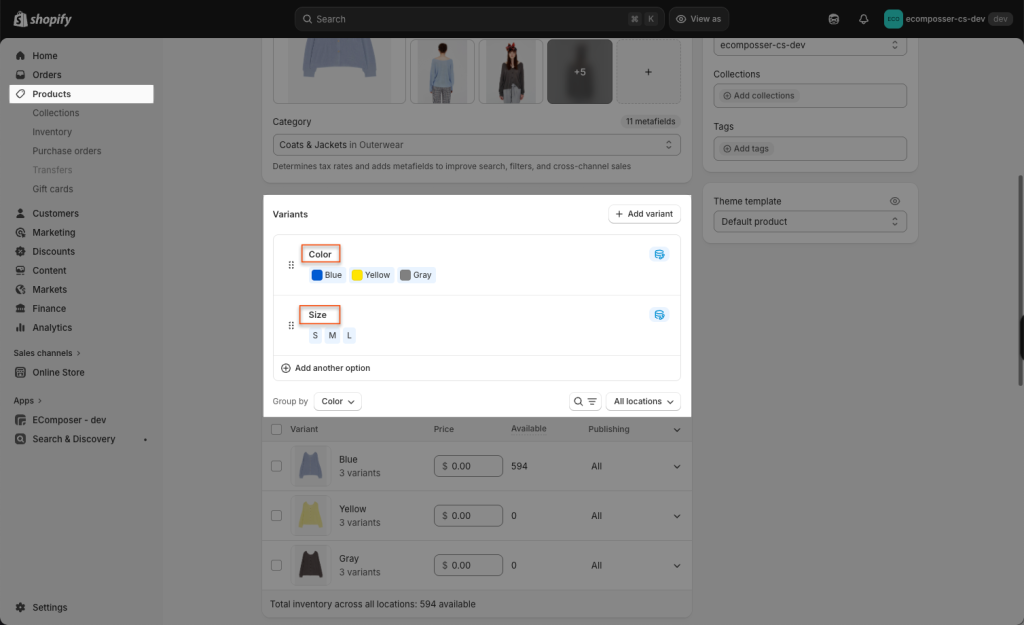
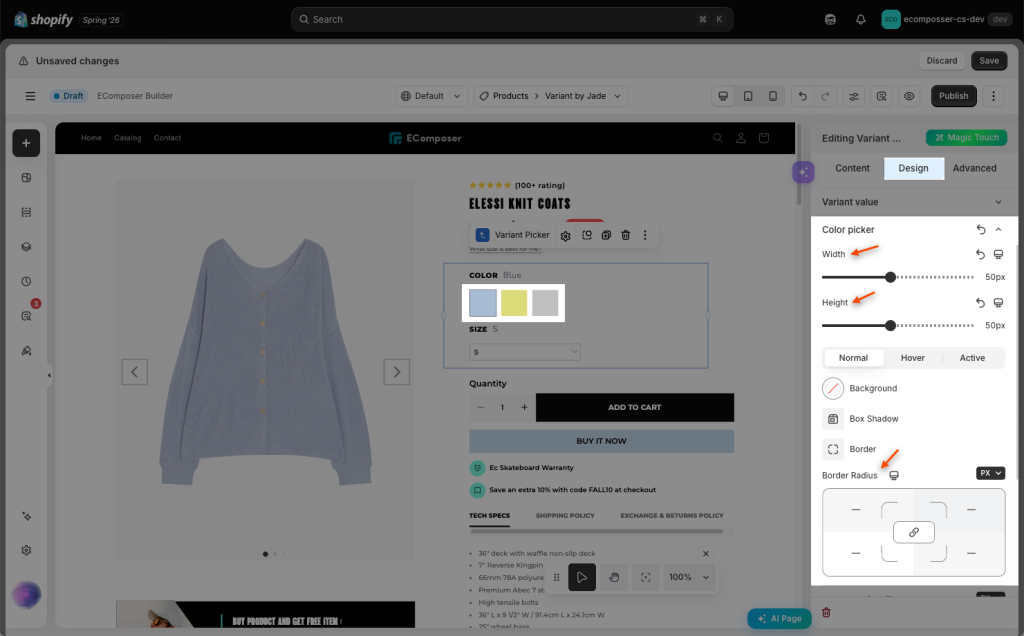
- Color picker: A setup where some attributes (like color) are shown as visual pills or buttons. The key design options include width, height, border radius,…
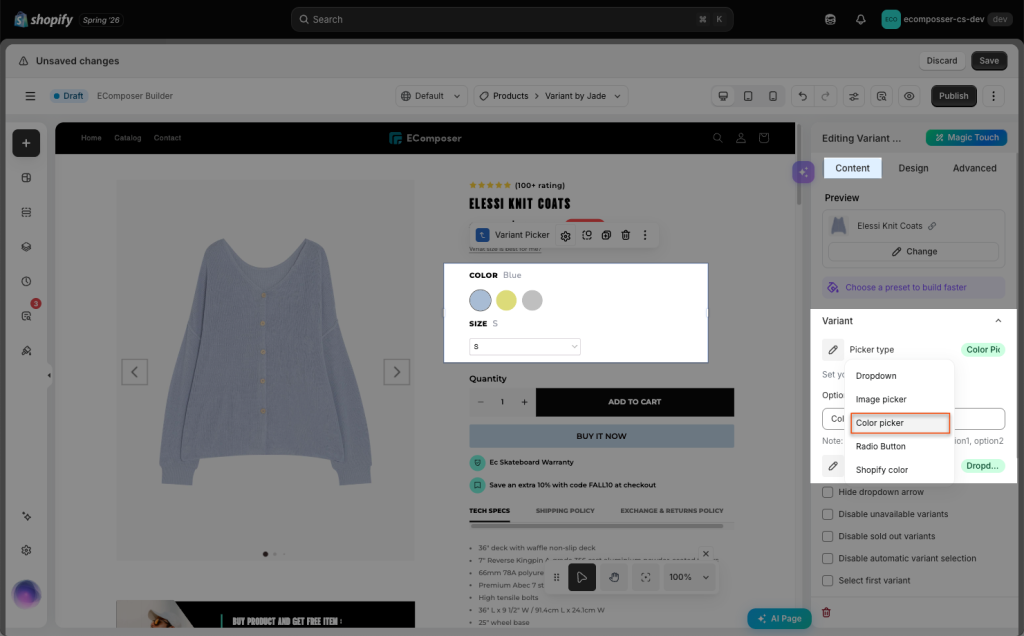
Furthermore, you have to install the “Custom Color Swatches” extension and configure the Variant color. Click “here” link to explore more about that extension.
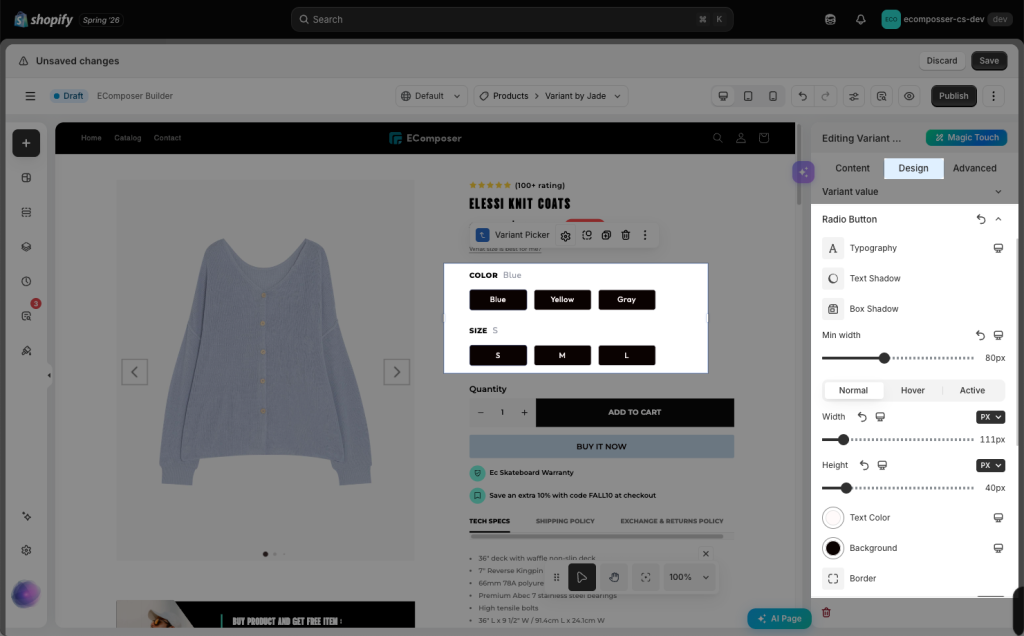
- Radio button: Allows users to select one option from a set of available choices. Use radio buttons when users need to view all available options before making a selection. Unlike a color picker, radio buttons display text labels instead of visual color options.
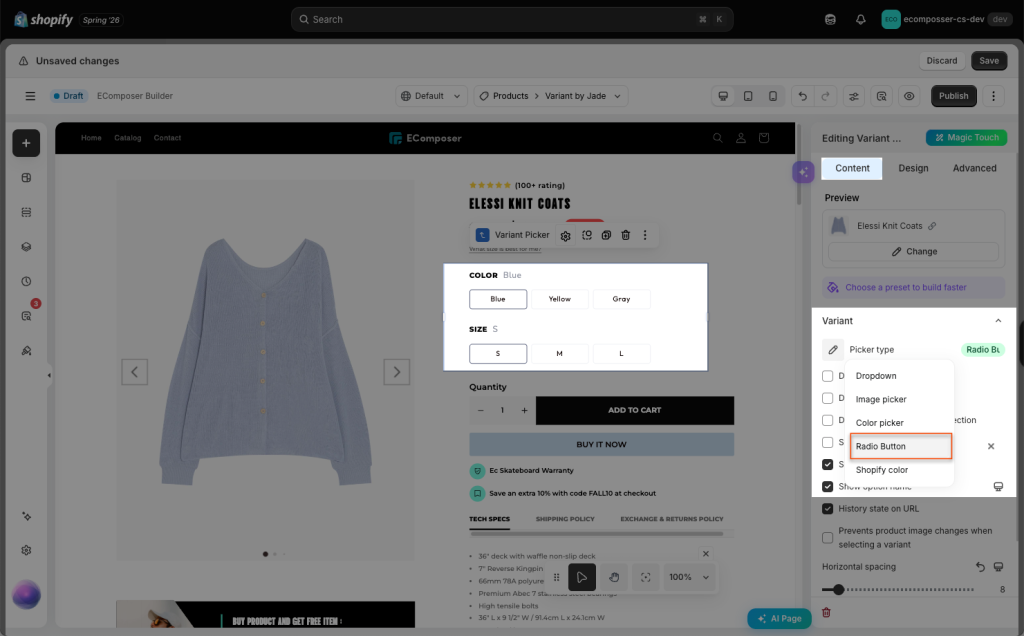
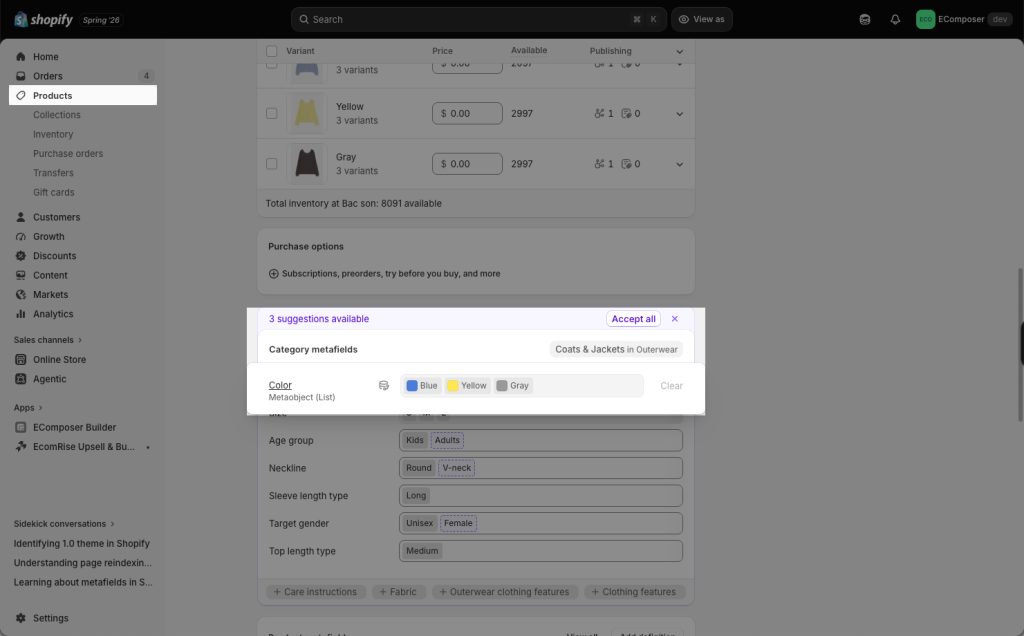
- Shopify color: has the same style as Color picker but the main difference is it pulls color data from Shopify Admin -> Color Metafield.
- Other options: Combine 2 types of picker if you want. You can show those variant options in Dropdown type or Radio type for other variants here.
1.2 Product variant display
- Disable unavailable variants: If a variant is unavailable, it will be hidden from the picker.
- Disable sold-out variants: Choose how sold-out variants should appear in the variant picker. They can still be displayed with a crossed-out / slash style or disabled so customers cannot select them, or you can choose Hide to remove them from the picker entirely.
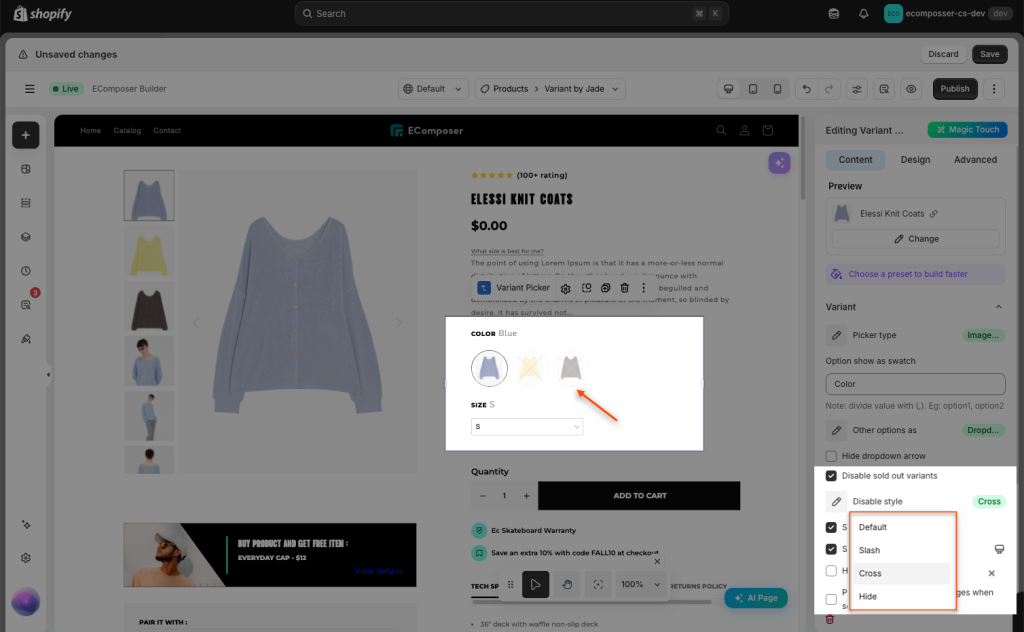
- Show option selected: Show the variant name that was picked next to the variant name.
- Show option name: Show the variant name. If you uncheck this checkbox, the Variant name will be hidden.
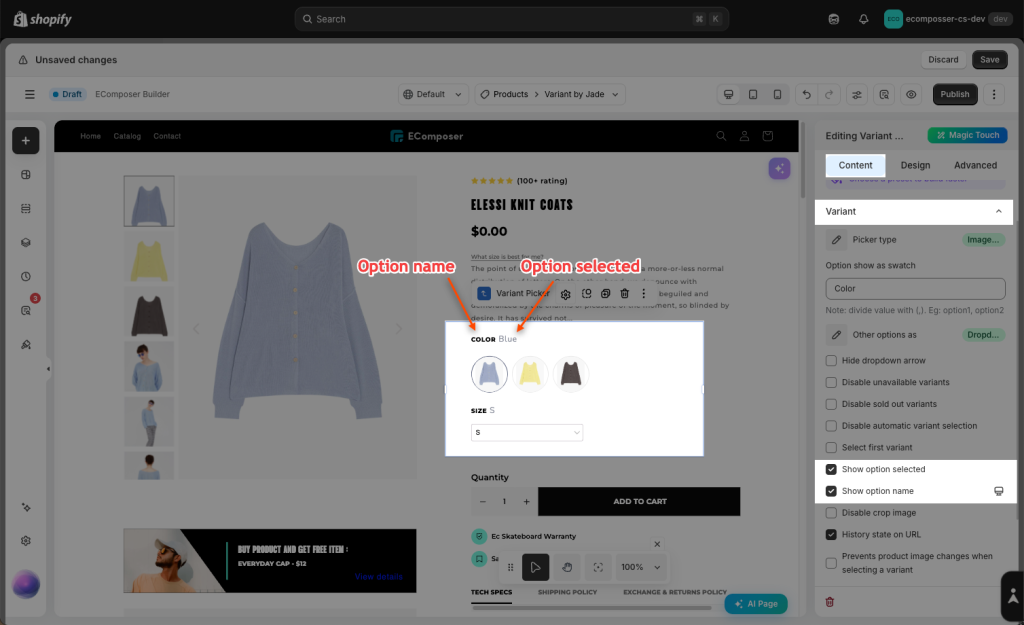
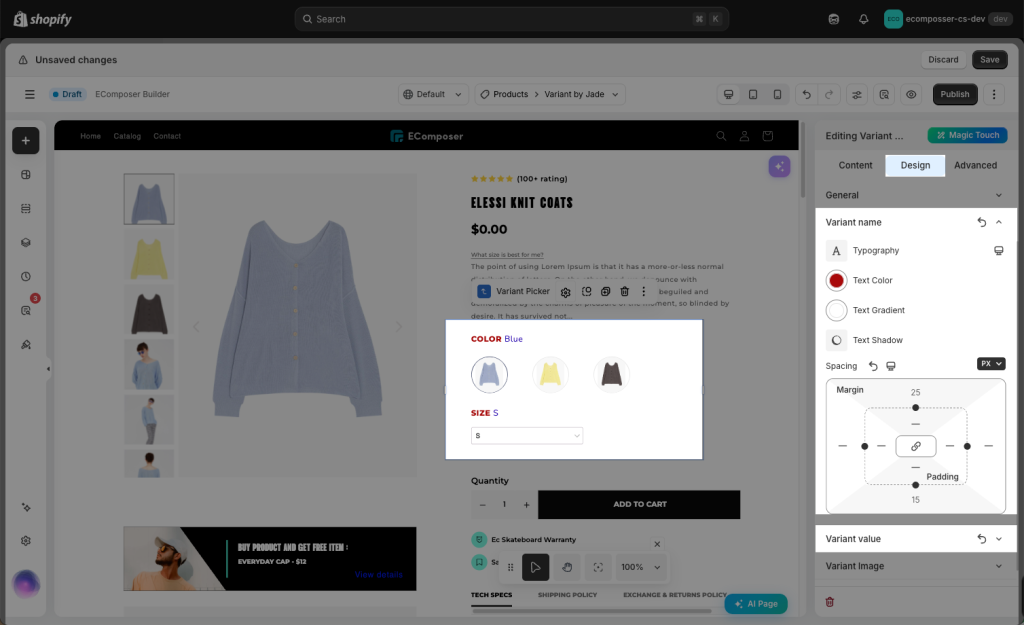
To change the design of the option name and variant name, you can go to Design tab -> Variant name and Variant value.
1.3 How to Change URL on Variant Selection
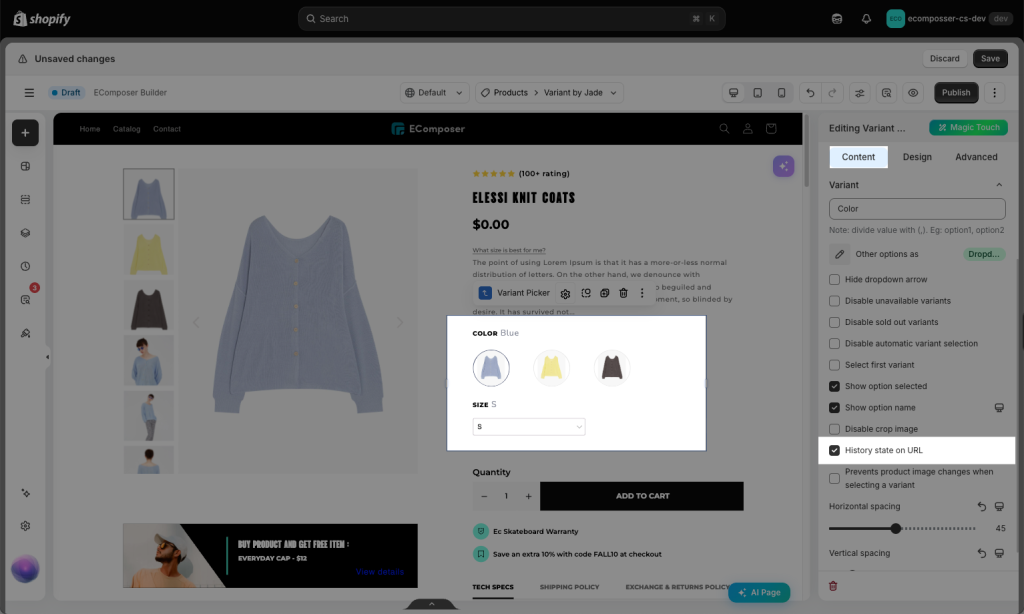
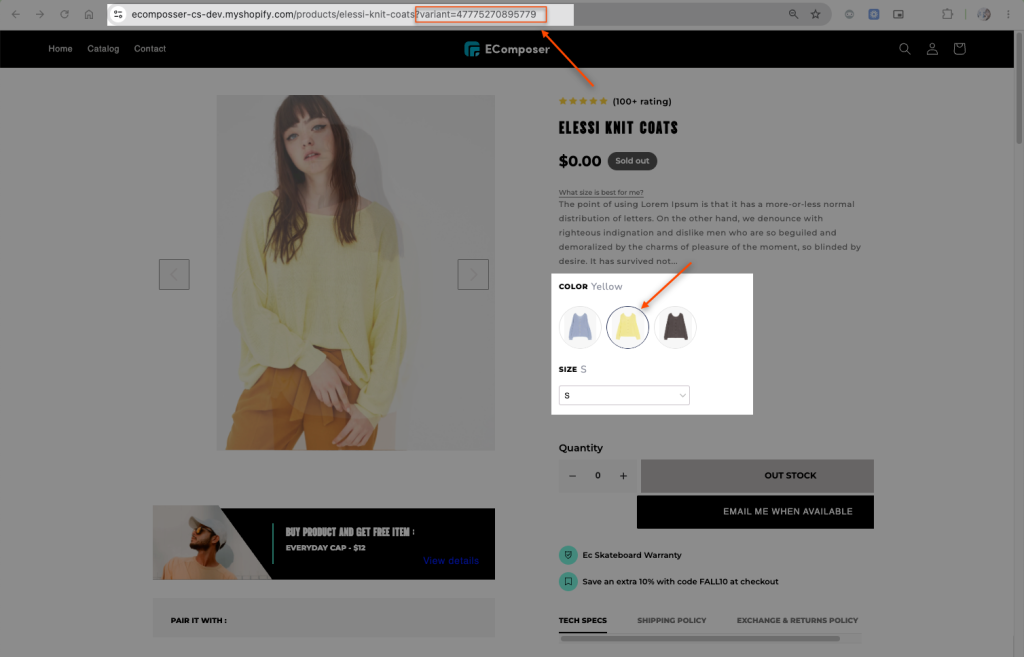
- History state on URL: Each variant has an ID. The URL at the top bar will change when you select a different variant based on the one you just made.
Result:
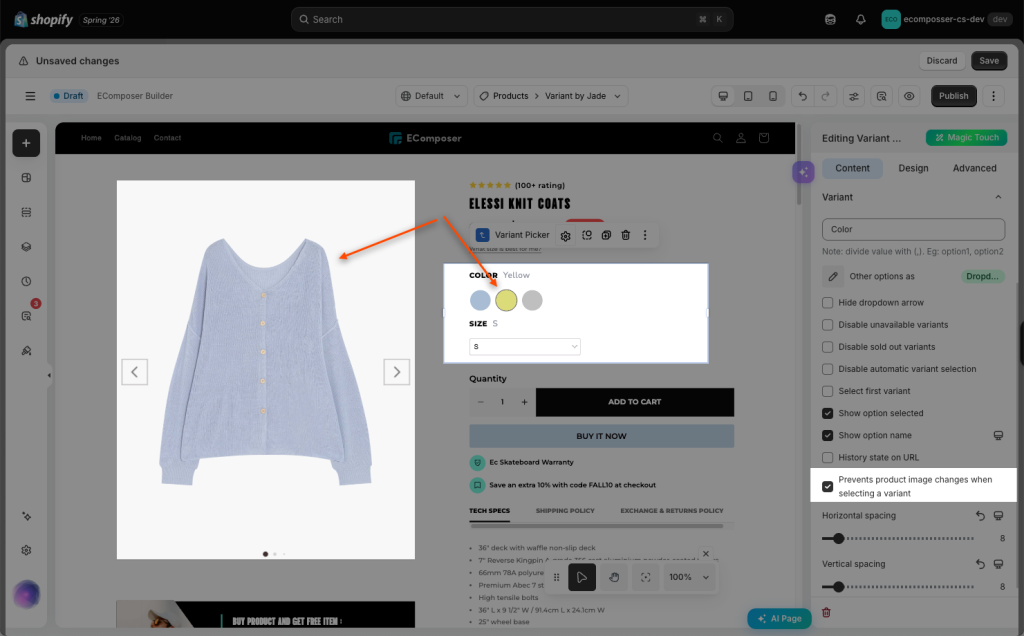
- Prevents product image changes when selecting a variant: The selected variant (yellow) will still be updated, but the product image will remain the same (blue)
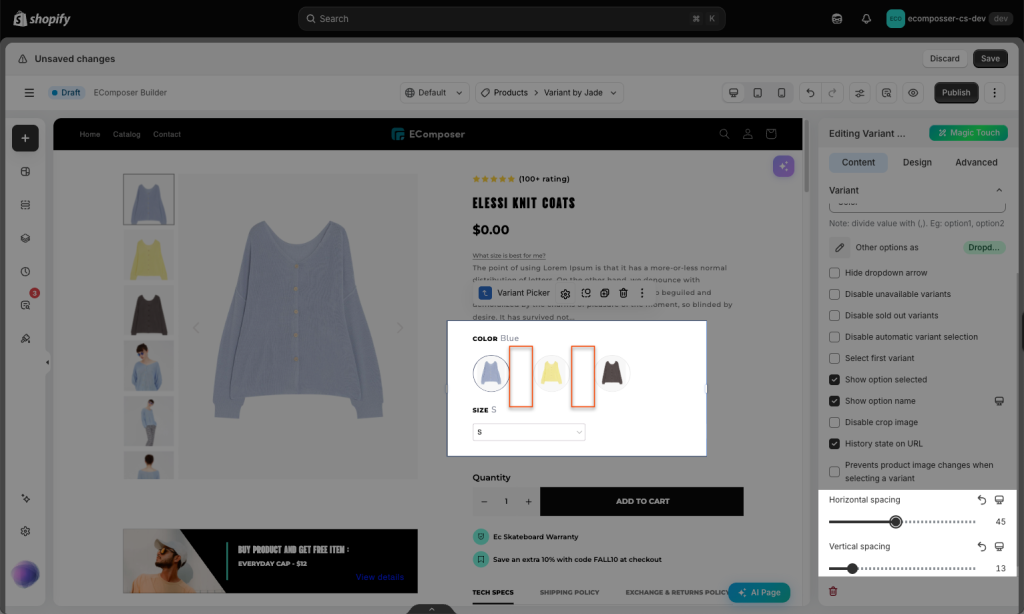
1.4 Vertical/Horizontal spacing adjustment
Configure the vertical/horizontal space for the Variant here. This option is available for desktop, tablet, and mobile devices.
2. Design
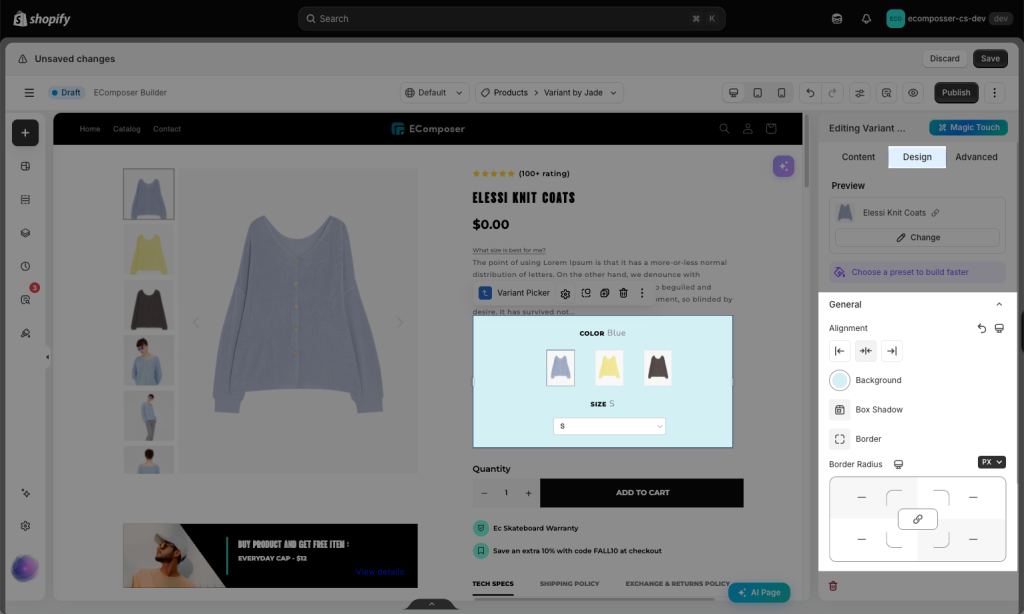
The Design tab allows you to customize the appearance of the Variant Picker element on the product page. You can adjust the general layout settings such as alignment, background, box shadow, border, and border radius to match your store’s design.
2.1. General style
- Alignment: Allows you to align the Variant Picker element here. You can choose Align Left, Align Right or Align Center. This option is available for desktop, tablet, and mobile devices.
- Background: Configure the background color for the Variant Picker element here.
- Box Shadow: Allows you to add a shadow for the Variant Picker element by changing the Blur, Horizontal, Vertical, etc.
- Border: Choose the border style for the Variant Picker element here. You can also choose the None style to disable the border.
- Border Radius: Allows you to configure the border radius for the Variant Picker element, available for desktop, tablet, and mobile devices, available for desktop, tablet, and mobile devices.
2.2. Customize Variant and Option style
In the Design tab, there are options to change the design based on each picker style selected in the Content tab. These options are Variant Name and Variant Image, Variant value, and Dropdown. The design settings are to change things like Typography, Text Color, Text Shadow, Spacing, and Width + Height.
You can configure the style of some design settings in both Normal and Focus/Hover mode.
- Color Picker style
- Variant image style
- Radio Button style
- Dropdown style




2 Comments
Peter bange
Is it possible to create a page for a single variant (where the shopify product has multiple variants).
Maria
Hi dear!
Currently the app doesn’t support this.